A Strategic Guide To The Whogohost Affiliate Dashboard
For: Whogohost Affiliates, Bloggers, and Digital Marketers
The Whogohost Affiliate Program is designed to be more than just a referral system; it is a revenue stream for your business. However, signing up is only the first step. To effectively monetize your audience and maximize your commissions, you must understand your primary tool: the Affiliate Dashboard.
This control center allows you to track traffic, monitor conversion rates, manage campaigns, and access your earnings. This guide provides a professional walkthrough of the dashboard to help you transition from a casual referrer to a data-driven affiliate partner.
Before exploring the backend performance charts, it helps to understand the broad parameters of the system. If you ever need to quickly review the foundational commission tiers or cookies windows, heading back to the main portal for the Whogohost affiliate program gives you an instant overview of the program’s structural perks before you start tracking clicks.
Accessing Your Command Center
Accessing your dashboard is straightforward. Follow these steps to begin:
- Log in: Navigate to the Whogohost Client Area and sign in with your credentials.
- Navigate: Locate the “Affiliates” tab in the main navigation menu or sidebar.
- Activate: If this is your first time, click “Activate Affiliate Account.” If you are already active, you will be directed immediately to the dashboard.
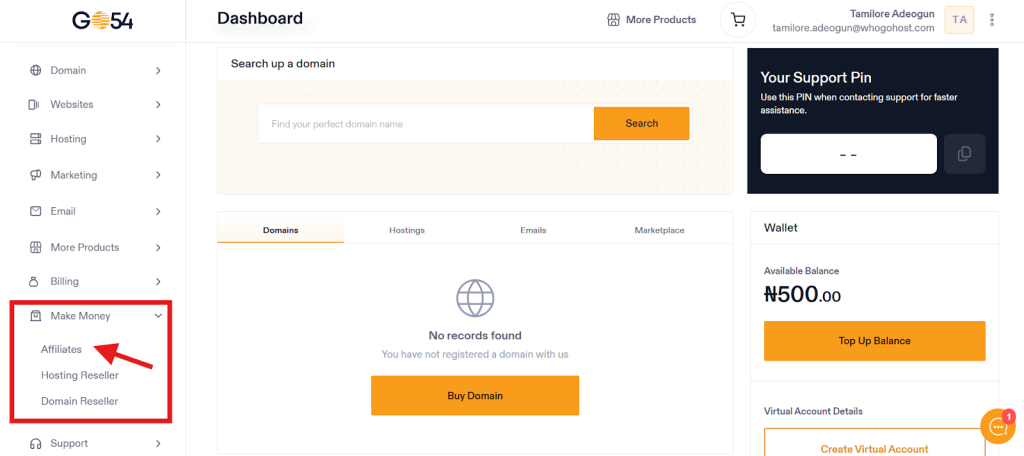
Pro Tip: Bookmark this page. Frequent monitoring of your statistics is essential for optimizing your campaigns.
A smart look at your dashboard analytics will usually show that most users don’t buy hosting infrastructure on their very first visit. Instead of losing those leads, implementing a clean setup based on our retargeting 101 guide to affiliate income lets you run low-cost ad campaigns that keep your custom links top-of-mind for users who are still deciding.
Dashboard Overview: Understanding the Metrics
The dashboard is divided into specific sections designed to give you a clear view of your performance. Understanding these metrics is key to increasing your income.
1. Real-Time Statistics
At the top of the dashboard, you will see a snapshot of your current performance:
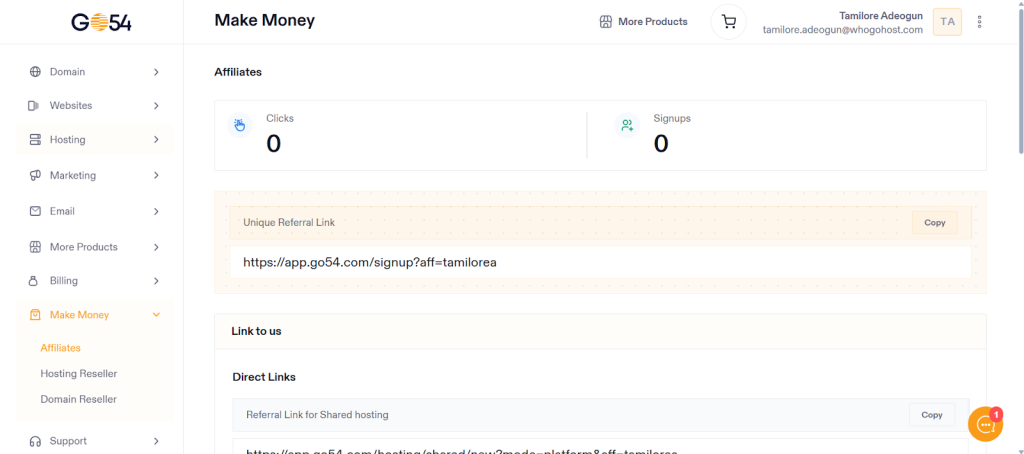
- Clicks: The total number of visitors who have clicked on your unique tracking links.
- Sign-ups/Conversions: The number of users who completed a purchase after clicking your link.
- Conversion Rate: The percentage of clicks that turn into sales. A low conversion rate indicates that while your traffic is good, your “pre-sell” content may need adjustment.
2. Your Unique Referral Link
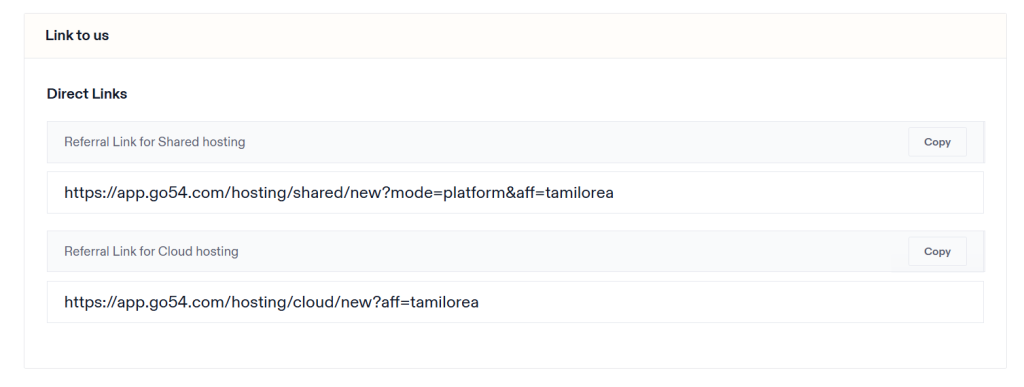
This is your most valuable asset. It contains a unique tracking ID that attributes sales to your account.
- Default Link: Directs users to the Whogohost homepage.
- Custom Links: You may have options to link to specific pages (e.g., Shared Hosting or Cloud Hosting ). Linking directly to the product you are reviewing often increases conversion rates.
Once inside your main interface, your first step is navigating to the link generator tool to grab your unique tracking strings. If you want to dive deeper into maximizing those clicks, combining your raw URL setups with the strategies in our complete guide to earning with the Whogohost affiliate programme will show you exactly how to contextualize those links inside your marketing channels.
3. Marketing Creatives and Banners
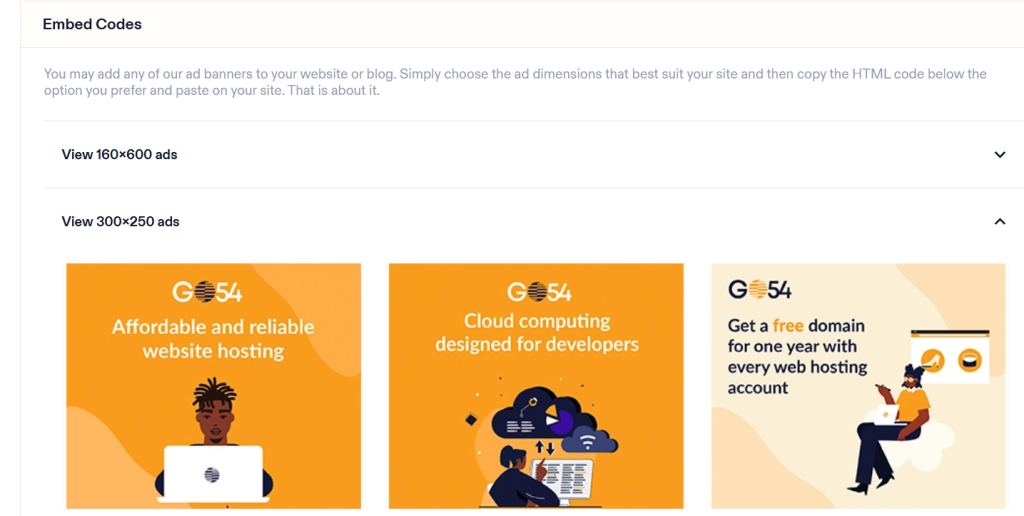
Whogohost provides pre-made graphical banners in various industry-standard sizes.
- How to use: Select a banner that fits your website’s layout (e.g., sidebar, footer, or in-article).
- Implementation: Copy the provided HTML code and embed it into your site. These images are hosted on our servers to ensure they load quickly and track accurately.
Financial Overview: Tracking Your Commissions
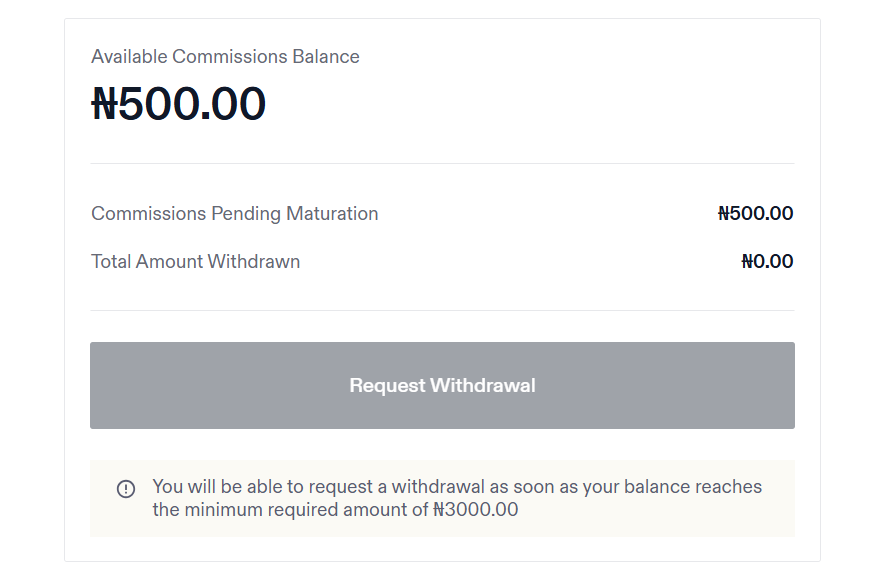
This section provides transparency regarding your earnings and payout status.
- Available Commissions Balance: This figure represents funds that have cleared the maturation period and are ready for withdrawal.
- Pending Maturation: When a referral makes a purchase, the commission enters a holding period (typically 30 days). This ensures the order is legitimate and not subject to cancellation or refund. Once cleared, these funds move to your “Available Balance.”
- Total Amount Withdrawn: A historical record of all payouts paid to your bank account.
The Withdrawal Process You may request a payout once your Available Commissions Balance reaches the minimum threshold of ₦3,000. The “Request Withdrawal” button will become active automatically when this criterion is met.
If your dashboard performance data shows high impressions but low sign-ups, your content format might need a strategic pivot. To see a significant spike in your conversion metrics, check out our blueprint on writing high-converting Whogohost reviews to build honest, expert-led reviews that make readers eager to click your affiliate link.
Strategic Implementation: How to Use Your Link
Simply pasting a link is rarely enough to drive significant revenue. Use these strategies to integrate your referral link effectively:
- Contextual Text Links: Embed your link naturally within blog posts. For example: “For reliable local hosting, we recommend Whogohost due to their uptime and Naira pricing.”
- Button CTAs: Use high-contrast buttons with clear calls to action, such as “Get Started with Whogohost” or “View Hosting Plans.”
- Social Media Bio: utilize link-shortening tools to place your affiliate link in your Instagram, Twitter, or LinkedIn bio.
- Email Marketing: Include your link in newsletters when discussing business tools, website launches, or digital transformation.
Optimization: monitoring for Growth
Treat your affiliate activity like a business. Use the dashboard data to make informed decisions:
- Weekly Reviews: Check your “Clicks” vs. “Sign-ups” weekly.
- Identify Trends: If a specific blog post is driving high clicks but low sales, review the content. Are you promising something the landing page doesn’t deliver?
- A/B Testing: Try different banners or link placements to see which yields a higher click-through rate (CTR).
Summary of Key Actions
- Login to the Whogohost Client Area and access the Affiliates section.
- Copy your unique referral link.
- Integrate the link into your highest-traffic content immediately.
- Monitor your “Pending Maturation” balance to forecast future revenue.
- Update your payout details to ensure seamless transfers once you hit the ₦3,000 threshold.
By mastering the Whogohost Affiliate Dashboard, you move from passive sharing to active income generation. Log in today to review your stats and plan your next campaign.
Using your performance interface to monitor payouts, click-through rates, and tracking links is an excellent daily operational habit. Once your traffic scales and you are comfortable reading your data trends, explore our advanced roadmap on how to turn your affiliate sales into a full-time income to turn this automated digital channel into a scalable business.

The Author
Tamilore
As a marketing professional at Whogohost, I drive business growth through performance-focused campaigns and strategic content. My work is guided by a passion for ethical business and a commitment to empowering entrepreneurs.
More posts from Tamilore