
An anchor link allows you to jump to a specific section of a page on your website when someone clicks it.
To add an anchor link on the Whogohost SiteBuilder, you’ll need to use the Embed Code element. Follow the steps below to set it up:
Drag the Embed Code element to the exact spot on the page where you want the anchor to land.
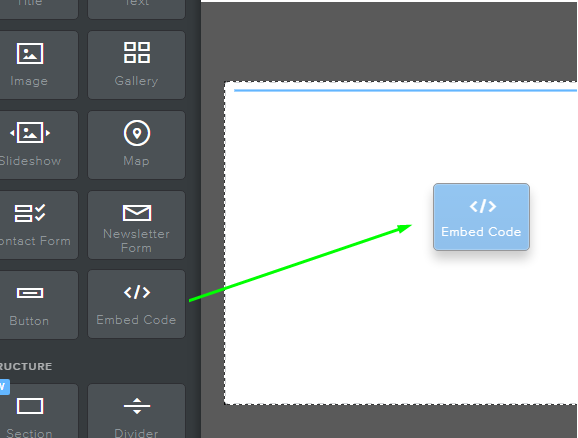
Once you place it, click the element. You’ll see the text “Click to enter custom HTML.” Select Edit Custom HTML to open the code editor.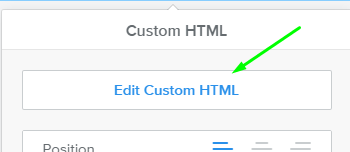
At this point, you’ve created the landing point for the anchor link. Now decide where you want the link to come from—this could be a button, a text link, or any other linkable element.
To create the clickable link, choose the Website URL option. You will need to type in the full URL of the page.
For example, if your site is www.mywebsite.com and the page you're working on is aboutus.html, your URL will look like this:
http://www.mywebsite.com/aboutus.html
Your clickable link will then be written like this:
<a href="http://www.mywebsite.com/aboutus.html">About Us</a>

Make sure the New Window option remains unchecked. If you check it, the anchor link will open a new tab instead of jumping to the correct section on the same page.
Once everything is in place, click Publish to make the anchor link active on your website.