
Follow this simple guide to get your paid or purchased SSL certificate installed:
- Log into your cPanel account.
- In the_** the Security section**, click SSL/TLS (or type “SSL” in the cPanel search bar).

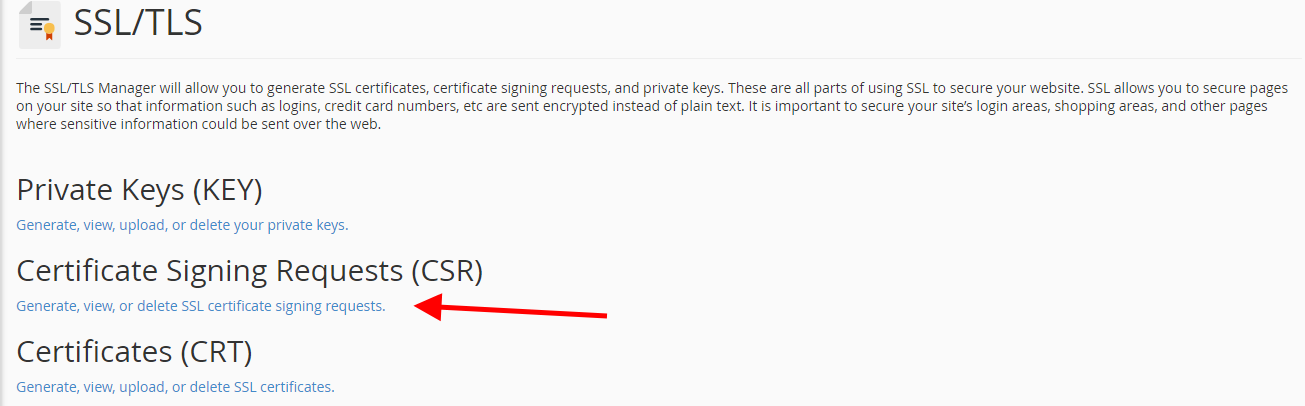
- Under Certificate Signing Requests (CSRs), click “Generate, view, upload, or delete SSL certificate signing requests”.
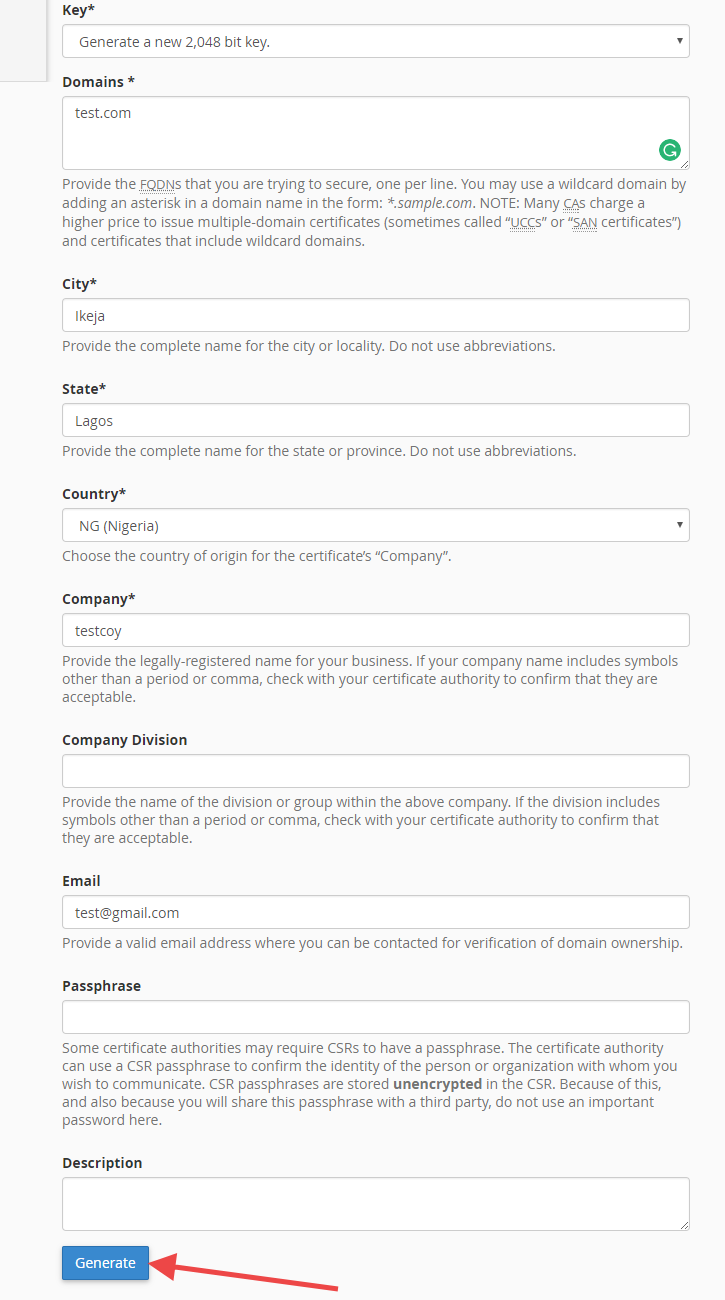
- Fill in all the required details (domain, company info, etc.) and click Generate.
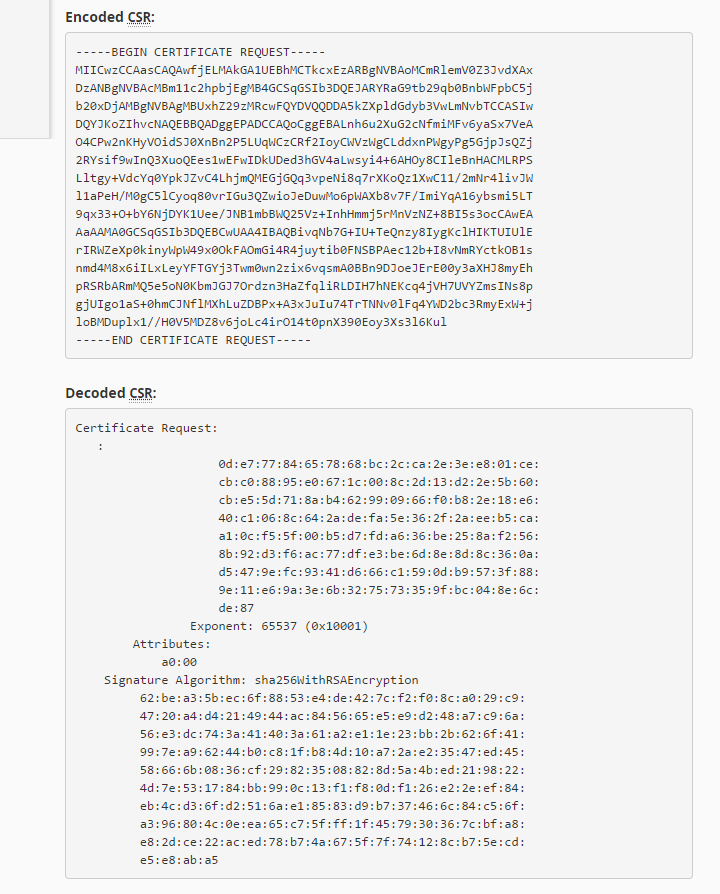
- After clicking the button, a CSR code will be generated.
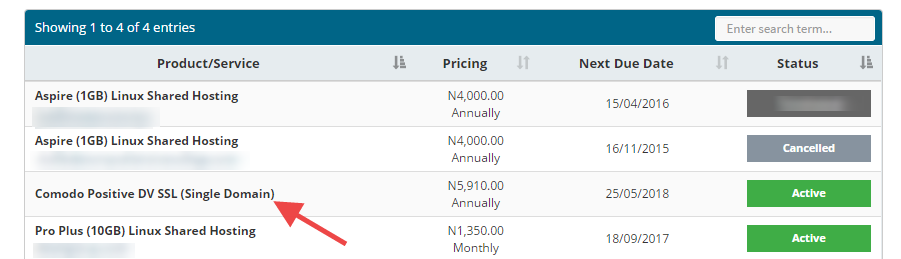
- Login to your client area on Whogohost. Click on Hosting & Services -> My hosting & Services.

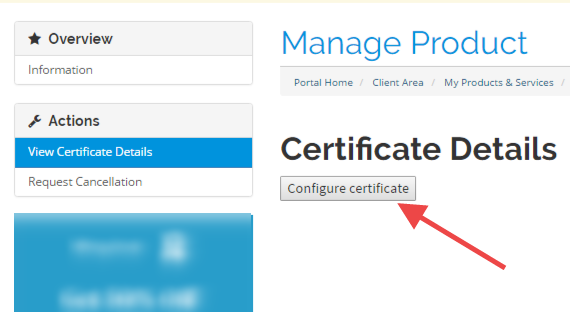
- Click on the SSL certificate order.
- Click on Configure Certificate
- Select cPanel/WHM under the Web Server Type. Paste the Encoded CSR Code. Also, fill the other information in the displayed form

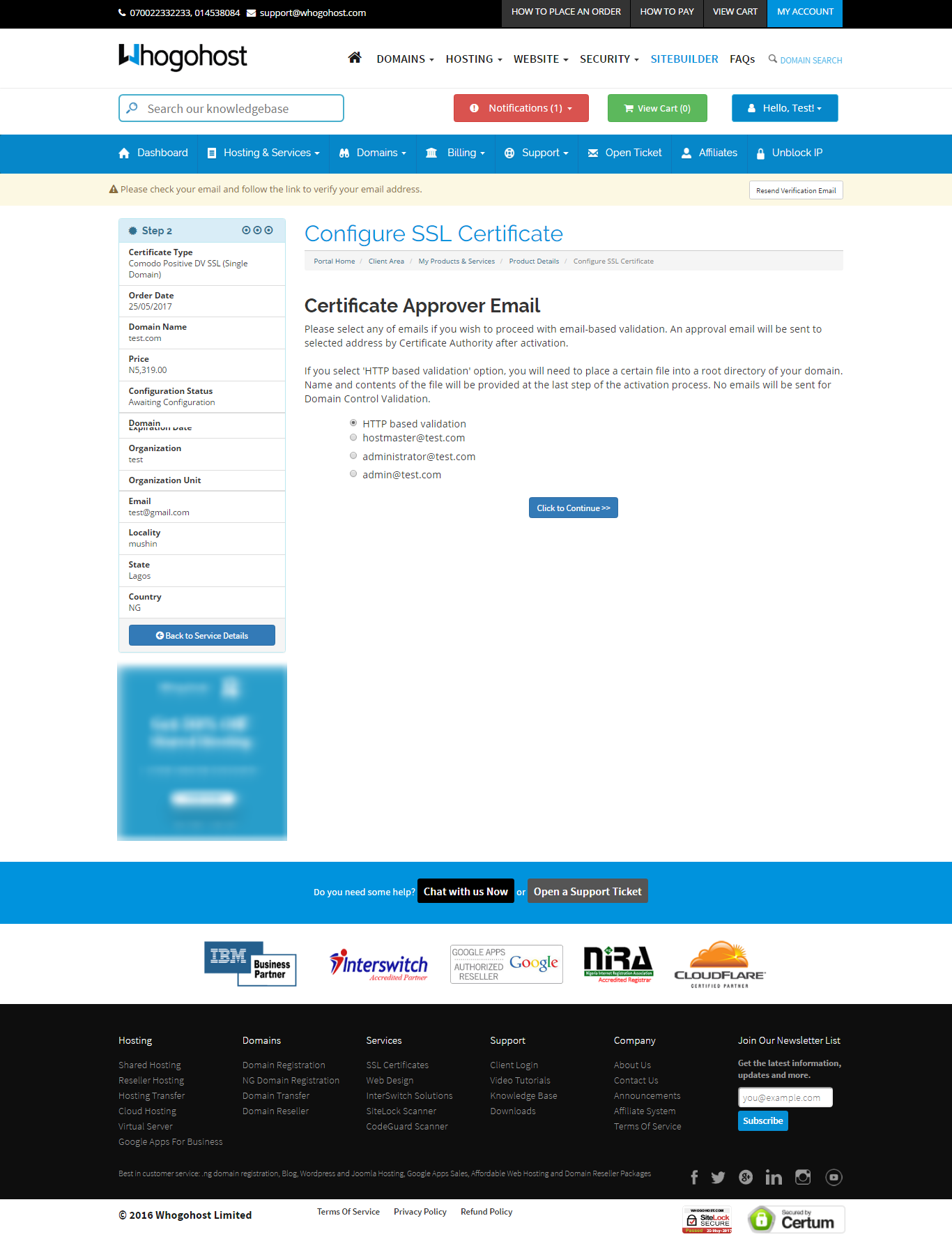
- Use an email address you can access — this is where the validation email will be sent. Click on Click to Continue >>.
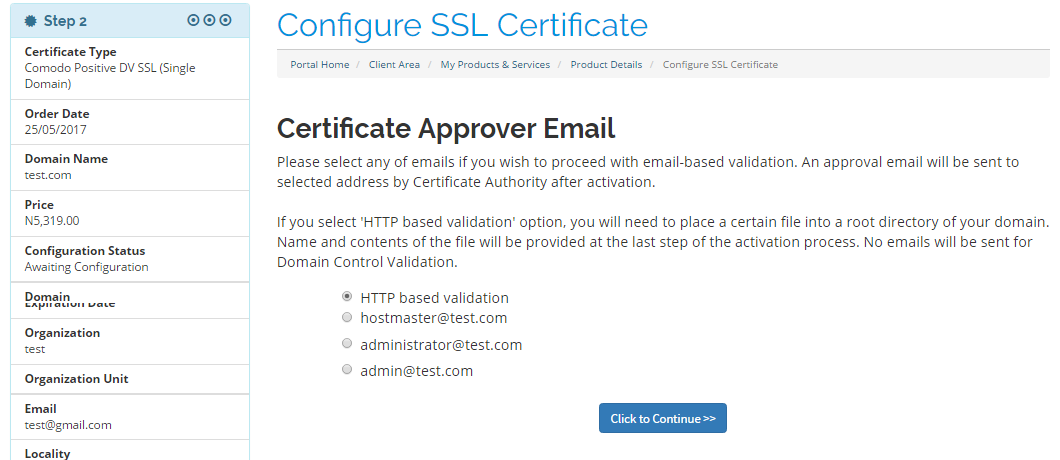
- Next, validate the certificate:
-
1. For Email validation: Choose one of the allowed admin emails (admin@, webmaster@, postmaster@, etc.) or the WHOIS contact email.
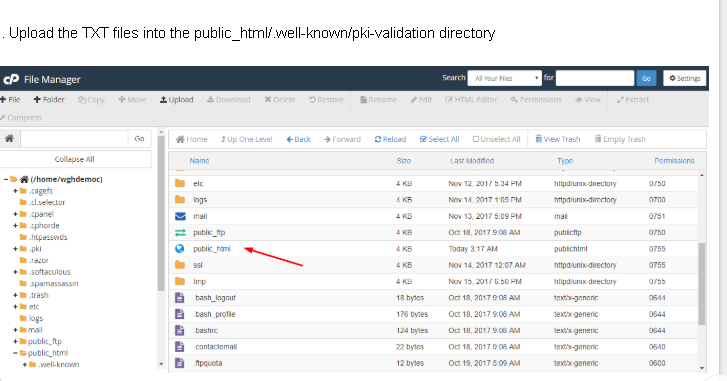
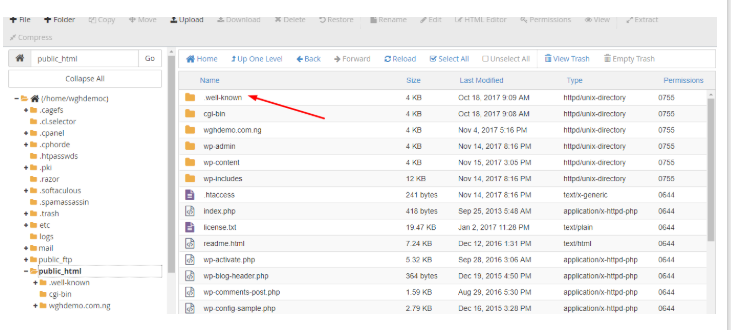
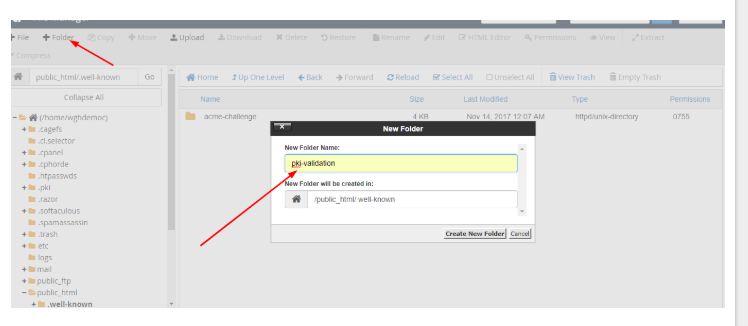
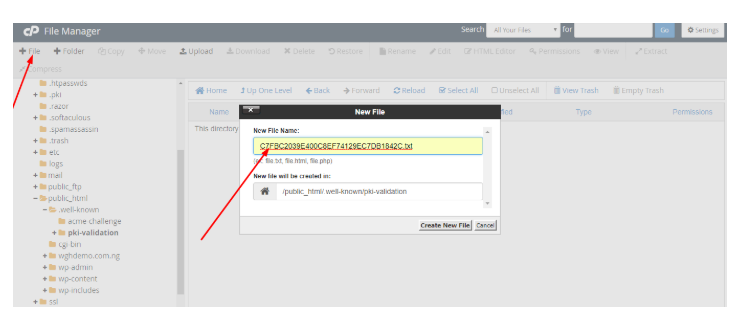
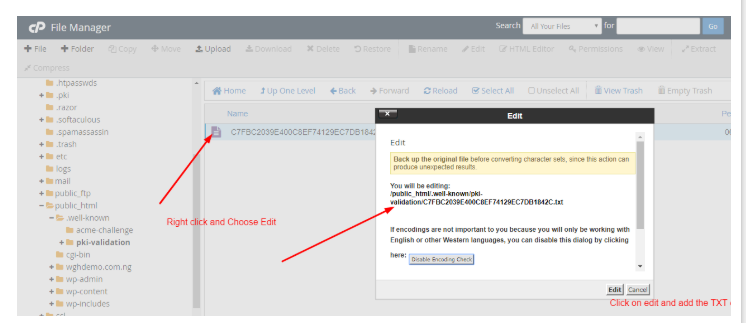
2. For HTTP validation (if selected): Upload the provided text file to public_html/.well-known/pki-validation/ on your site.
-
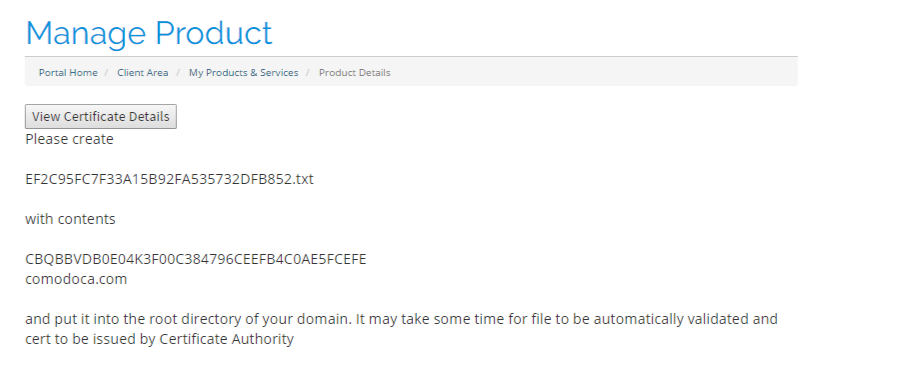
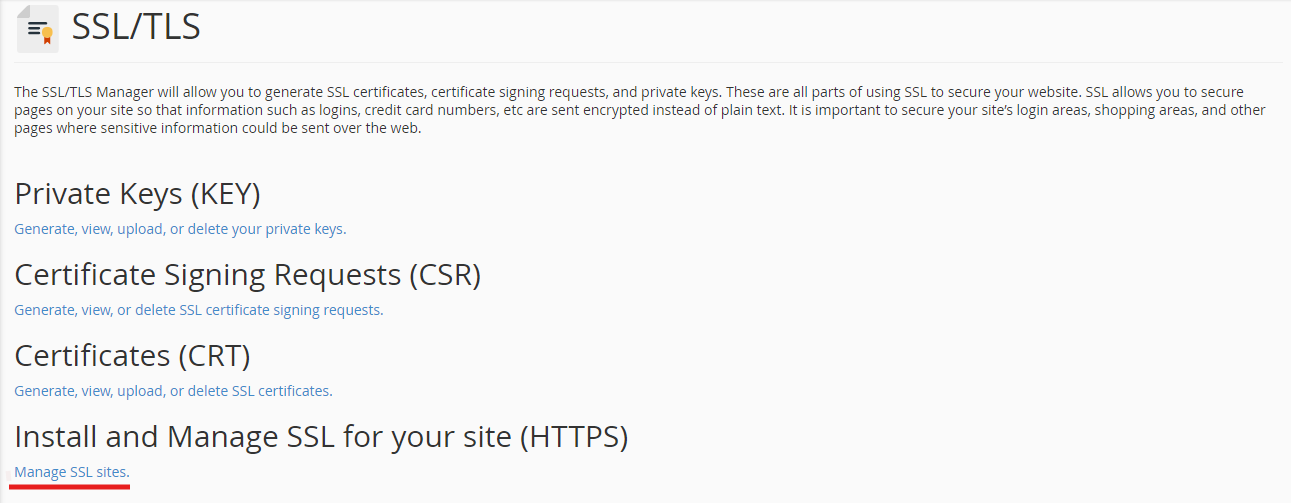
- Upload the TXT files into the public_html/.well-known/pki-validation directory.
- Copy the certificate code you received from the Certificate Authority including -----BEGIN CERTIFICATE----- and -----END CERTIFICATE----- and paste it into the 'Certificate: (CRT)' field on the next page. The certificate files can be opened with the help of text editor (e.g Notepad) on your computer.
Note: The certificate code can be found in the file *yourdomain*.crt which is usually sent to you in the email from the Certificate Authority.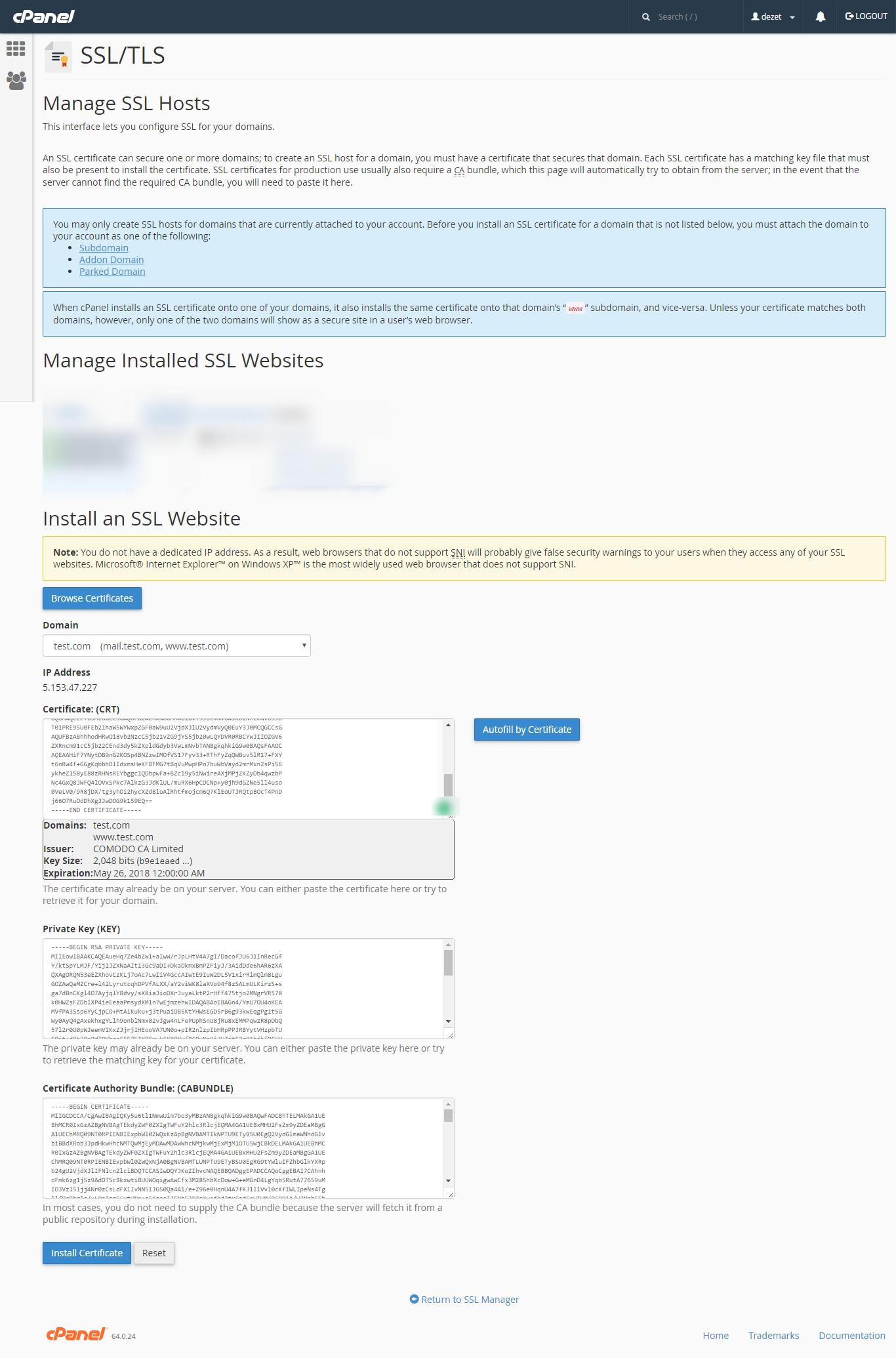
- Click on the 'Install Certificate' button.

You can click here to watch the video on how to install the Comodo SSL: